A useful PDF conversion should leave you with text you can check and use. These two examples follow different tasks: making a study note from a course handout, and making an editable process document from a multi-page SOP.
Both PDFs are original simulated documents created by PDFtoMD. They use selectable text, a single column and explicit heading tags. They show two workflows under these conditions, not results from customer files. The raw downloads were captured on November 17, 2026; the reviewed lecture is a separate edited example.
Choose a task
- Course handout → editable study note: keep the outline and exercises; review a split word and an address.
- Three-page SOP → reusable process document: compare cleanup off and on, while checking that repeated body text survives.
- PDF → Obsidian note: follow the existing Field notes walkthrough.
- Wrapped lines → readable paragraphs: compare line-merging settings and intentional breaks.
- Tagged headings → a Markdown outline: inspect the existing H1–H6 example.
Download a source PDF, open the converter, and select Choose PDF. Try a sample loads the separate Field notes document, not the PDFs on this page. These examples fit the current one-file, 200 MB and 1000-page limits. Conversion runs in your browser; review our privacy and analytics explanation for the website’s other network requests.
Course handout to editable study note
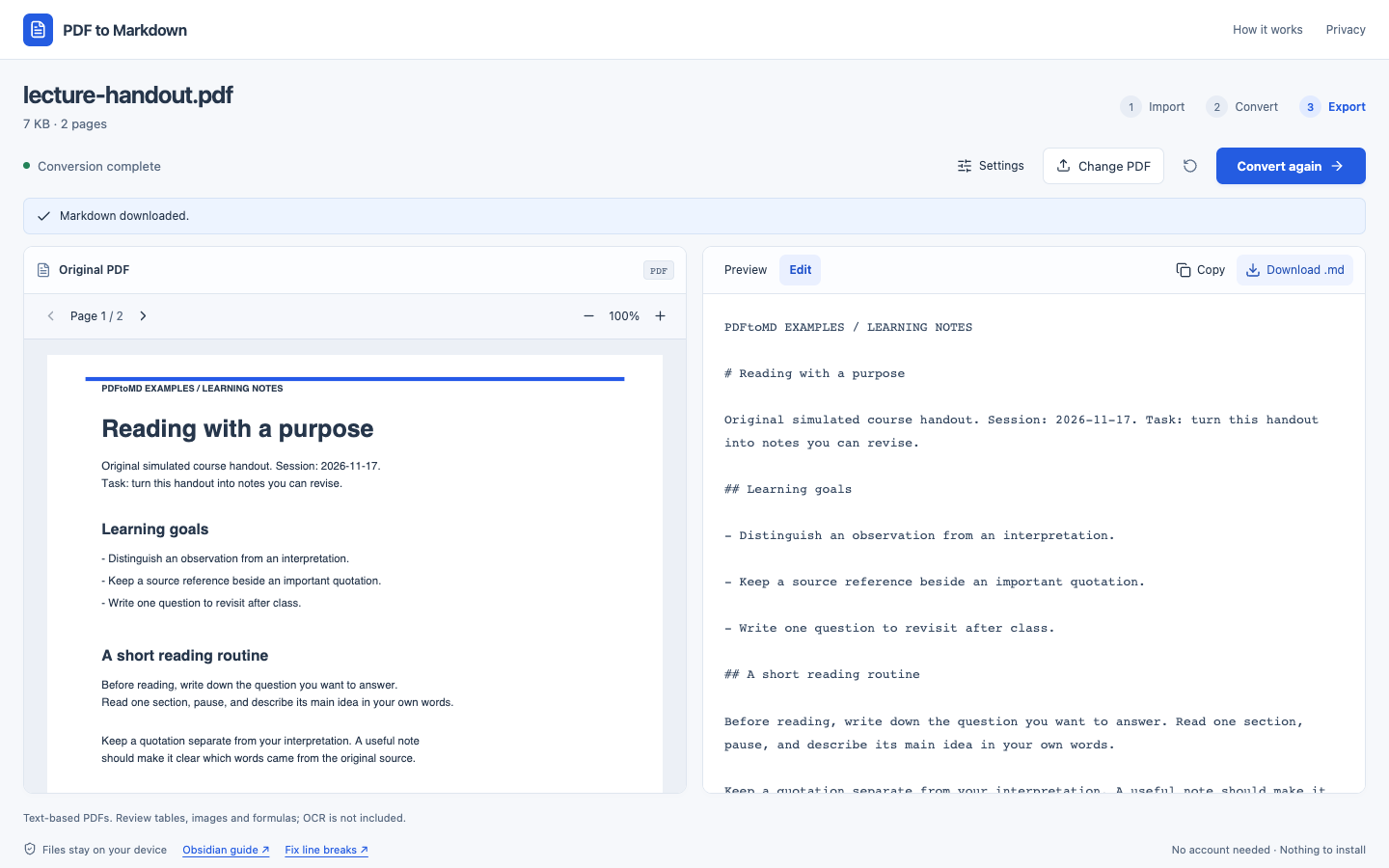
Task: turn a two-page, selectable-text handout into a note you can revise. The source contains a reading exercise, headings and basic lists. A split word, a fictional address, amounts and dates are deliberately included as conversion checks; they do not establish demand for this type of course material.
What the converter produced
With Detect headings on, Merge wrapped lines on, and Remove repeated headers and footers off, the output kept all eight tagged headings at their source levels, the three bullet items and the three numbered exercise steps. We checked the extracted text in source order, not only the number of headings. The amounts 125.00 USD and -5.00 USD, and dates 2026-11-17 and 2026-11-20, remained unchanged.
The reading paragraphs joined into continuous text. The address also joined, and the printed split word became note- taking. Page labels remained. Those details need a decision before the note is ready to keep.
What we edited before keeping the note
The separately downloadable reviewed note makes six individual edits:
- Remove two page-header labels and two page-footer labels.
- Correct
note- takingtonote-takingafter comparing with the PDF. - Restore the address as three lines, using Markdown hard breaks.
For example, merging produced this raw text on page two:
Example Learning Room 24 Sample Street Example City, CA 00000The reviewed file restores the address with two trailing spaces before each of the first two newlines. Rendered as Markdown, it appears as:
Example Learning Room
24 Sample Street
Example City, CA 00000
The split word is a separate edit: note- taking becomes note-taking.
The reviewed result is an editorial example by PDFtoMD. It is not another automatic conversion mode. No study summary or new learning content was generated. Compare the exact edit diff and review notes.
With Merge wrapped lines off, the address’s printed newlines remain in the raw file. They may still render as soft breaks in a Markdown app, so check your destination. This setting also keeps the split word across two lines; it does not repair it. Our line-break guide explains the distinction.
This two-page handout is below the current three-page minimum for repeated header/footer detection. Review its labels manually. Keep the source PDF when you need original page references, then save the edited Markdown in your notes app or follow the Obsidian import steps.
Three-page SOP to reusable process document
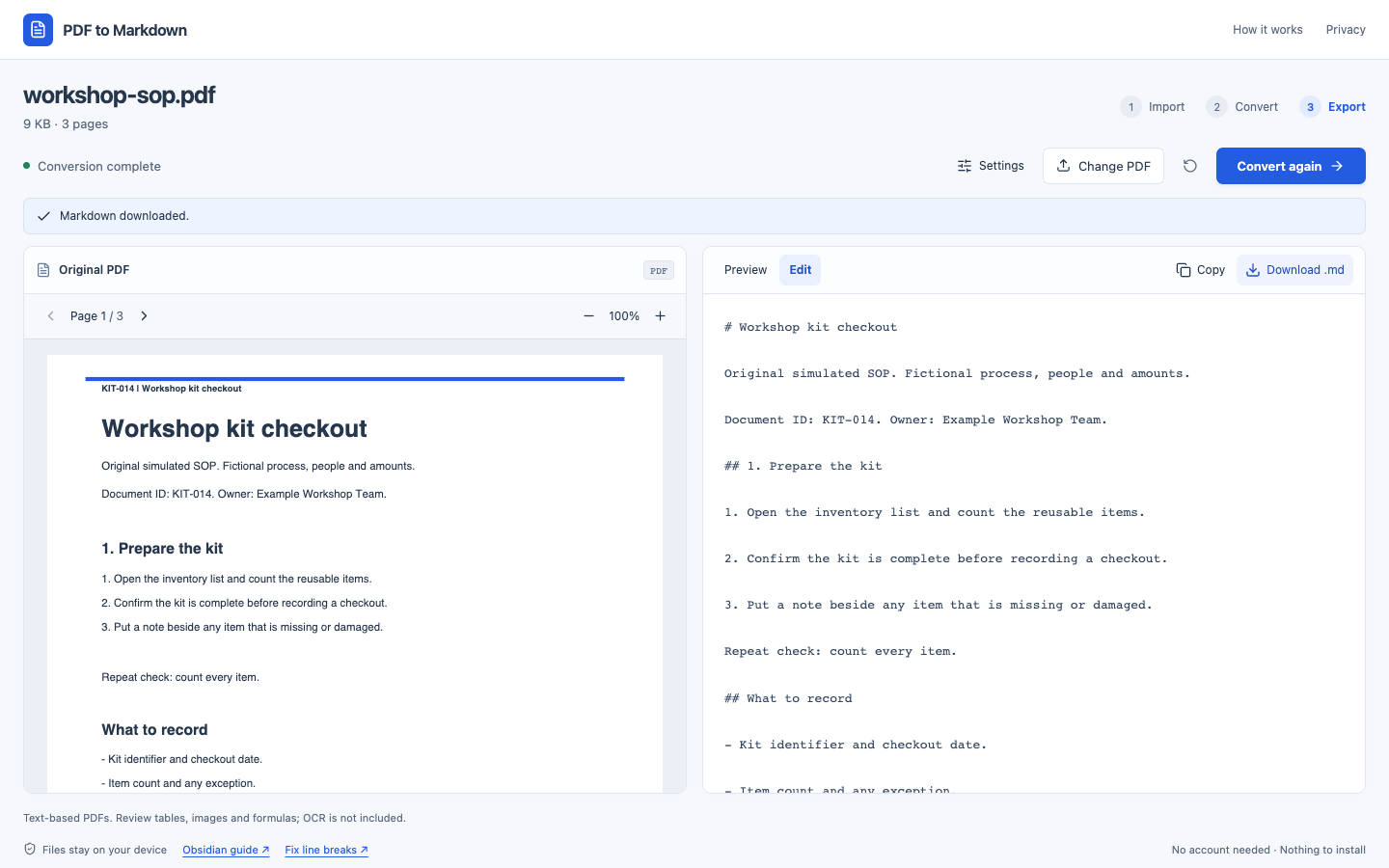
Task: turn a fictional workshop-kit checkout procedure into one editable document, while keeping its steps and important details. All three pages contain an identical header and footer. A separate reminder, Repeat check: count every item., intentionally appears in the body on all three pages.
Repeat the comparison
- Choose the SOP PDF. Leave Detect headings and Merge wrapped lines on.
- Convert with Remove repeated headers and footers off, inspect Edit, and download the result.
- Enable Remove repeated headers and footers, then select Convert again. Keep a download of any edits before reconverting.
- Compare the new output with the PDF. Check body text and steps as well as the removed page labels.
In this controlled source, cleanup removed the three matching first-line headers and three matching last-line footers. All nine headings retained their source text and levels. All other extracted text remained in order, including all three body reminders. The ID KIT-014, amounts and dates were unchanged.
We made no additional editorial text edits to the cleanup-on download after checking this sample against its source. That finding applies to this document; it is not a guarantee for other SOPs. Both downloads are actual unedited output from their stated settings.
The current cleanup checks identical first or last lines across at least three pages. This example does not test changing page numbers, varying revision labels or more complex headers. Repeated text in a page-edge position may also be meaningful; always review what was removed. Tables, nested lists and multi-column reading order are outside this example.
Try the workflow on your own document
Start with a short, single-column PDF whose text you can select. Decide where the Markdown will go, convert it, then compare it with the source before editing. Check headings, list order, amounts and dates. Keep a copy of your edits before converting again, and download the final file.
A useful outcome is a document you can finish with a reasonable amount of correction. If your file needs OCR or complex-layout recovery, check the current limitations before investing time in cleanup. These demonstrations do not establish a time-saving percentage or recurring user demand.
Source, settings and limits
PDFtoMD authored both source PDFs and visually checked all five pages. The sources use a single column, selectable text and explicit heading tags. Their favorable structure does not represent every PDF. The raw downloads were compared with the known source text and heading sequence; this is a controlled functional check, not an overall accuracy score.
Verification notes and exact files
The review notes distinguish automatic output from editorial changes. The file manifest records SHA-256 hashes for the exact files in the comparison. These checks compare words and heading order after normalizing whitespace; they do not verify every paragraph boundary, visual layout or list-rendering detail. Check those in your destination app too.
Scanned documents need OCR, which this version does not provide. Complex tables, formulas, images, nested lists and multi-column reading order may need another workflow or substantial correction. For an unreadable or partly readable file, check warnings and missing-page markers before using an export. See How it works for the current boundaries.