To turn a PDF into an editable Obsidian note, convert its text to Markdown, review the result, and move the downloaded .md file into your vault folder. You can also copy the Markdown into a new note. For a single file, you do not need an import plugin.
This guide uses PDFtoMD’s original two-page Field notes sample. You can download both the PDF and its actual, unedited Markdown output below, then repeat the steps with your own document.
Check your PDF first: this workflow is intended for PDFs with selectable text. PDFtoMD does not include OCR. Scanned pages, complex tables, equations, and multi-column papers need a different workflow or substantial manual work.
Should you convert the PDF or keep it as an attachment?
Convert when you want to rewrite passages, reorganize a document into notes, or add your own explanations alongside its text. Markdown gives you text you can edit without working around the PDF’s page layout.
Keep the original PDF when page numbers, diagrams, layout, or exact quotations matter. A converted note is a working copy. It does not replace the source, and conversion does not automatically create citations or Obsidian backlinks. You can keep both files in your vault if that suits your workflow.
1. Start with a text-based PDF
Open the PDF in your usual viewer and try selecting a sentence. If you can copy meaningful text, it is a reasonable candidate. If you can select only a page-sized image, the document probably needs OCR first. Even selectable text can have extraction problems, so this check is a starting point.
For this example, use our Field notes PDF: two pages of selectable English text in a single column, with headings, lists, dates, and amounts. It is an original demonstration document, not a customer file.
The converter accepts one PDF at a time, up to 20 MB and 50 pages. If your document exceeds those limits, choose a shorter document or prepare a smaller PDF before starting.
2. Convert the PDF in your browser
- Open the PDF to Markdown converter.
- Select Choose PDF and choose your file, or drag it into the file area. To use this guide’s example without downloading it first, select Try a sample.
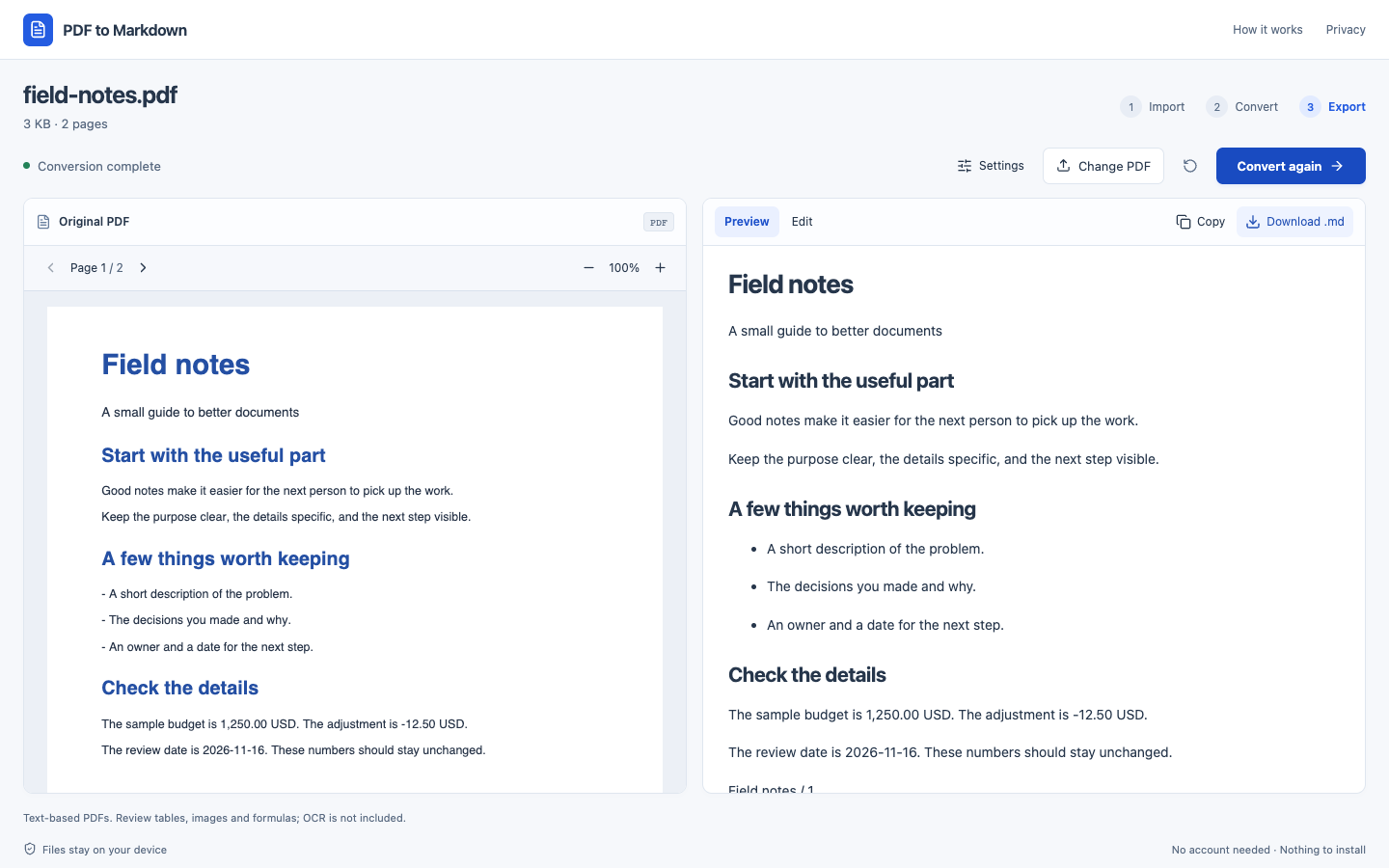
- Wait for the original PDF to appear, then select Convert to Markdown.
- Compare the original on the left with the Markdown preview on the right. On a narrow screen, use Original and Result to switch views.
For this walkthrough, we kept the default settings. Basic heading detection and wrapped-line merging were enabled; repeated header and footer removal was off.
PDF conversion runs locally in your browser. The app does not upload your PDF contents for conversion. The website still makes network requests to load its assets and uses Cloudflare Web Analytics for website usage and performance; see our privacy and analytics explanation.
3. Review the output before saving it as a note
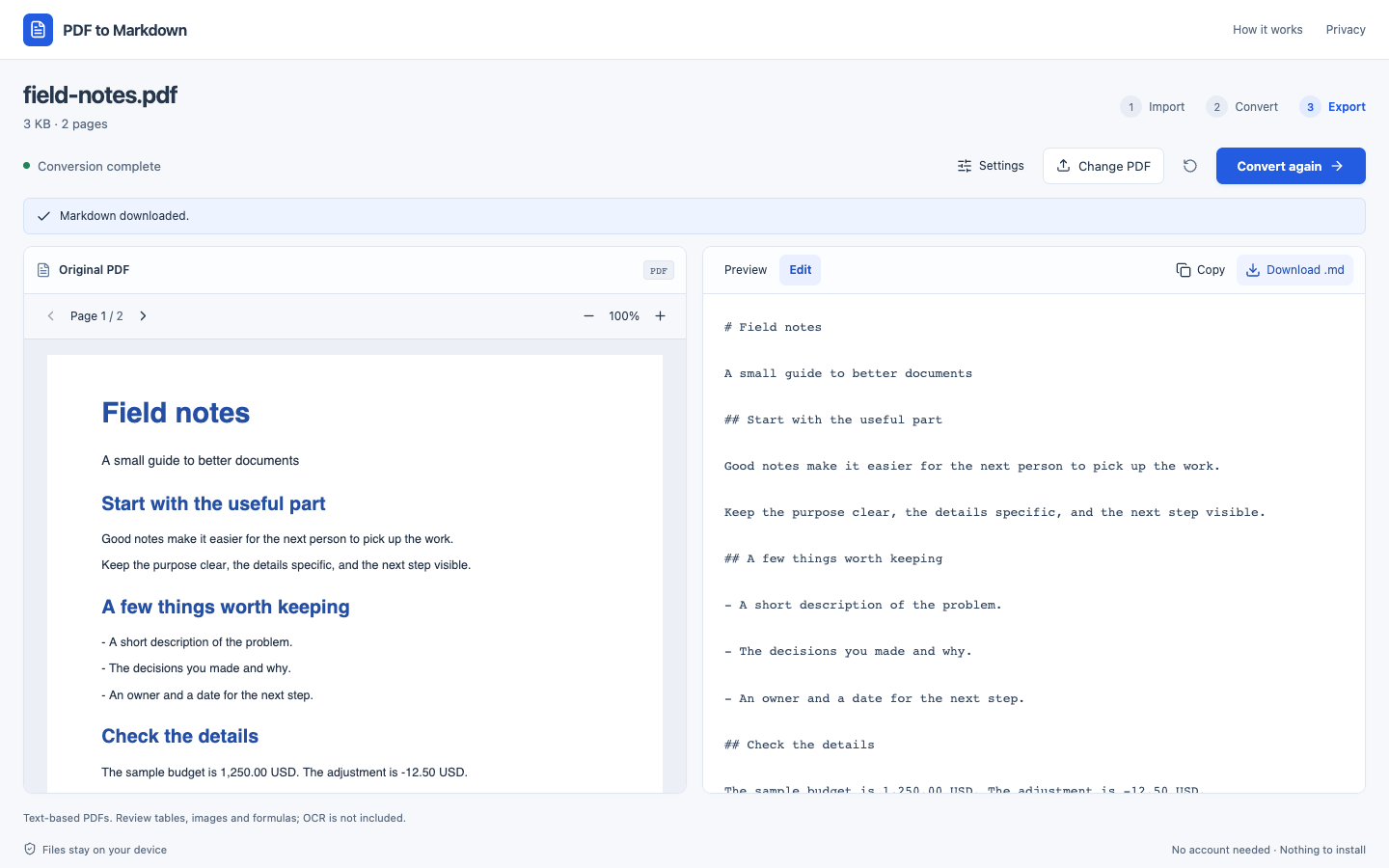
Select Edit to inspect the Markdown itself. This is an excerpt from the actual download produced in our walkthrough, with no manual corrections:
# Field notes

A small guide to better documents

## Start with the useful part

Good notes make it easier for the next person to pick up the work.

Keep the purpose clear, the details specific, and the next step visible.
The sample’s bullet lists were also converted to Markdown. The amounts 1,250.00 USD and -12.50 USD, and the date 2026-11-16, appeared unchanged in the downloaded result. That confirms this example; it is not a guarantee for every PDF.
Two details still needed a human decision:
- Page footers remained. The output included
Field notes / 1andField notes / 2. Remove those lines if they add noise to your note. - The second page began with another top-level heading. The converter interpreted “Make it easy to reuse” as
# Make it easy to reuse. If you want one title for the whole note, change that line to## Make it easy to reuseand adjust its subheadings to###as needed.
Before exporting your own document, check the heading order, paragraph breaks, list items, names, dates, amounts, and units against the source. Check links individually. Images and complex tables are not reconstructed reliably, and formulas may lose their meaning when extracted as ordinary text.
In Settings, Remove repeated headers and footers checks documents with at least three pages for identical first or last lines repeated across pages. It does not remove the numbered footers in this two-page sample. Changing page numbers and other variations may need manual cleanup. Inspect the result afterward, because automatic cleanup can also remove text you wanted to keep.
Download any edits before selecting Convert again, because reconverting replaces the current result.
4. Add the Markdown file to your Obsidian vault
Select Download .md. For our sample, the file is named field-notes.md. The download includes your latest edits, so there is no separate save button in the converter.
On your desktop:
- Open the Obsidian vault where you want the note.
- In Finder on macOS or File Explorer on Windows, locate that vault’s folder. A vault is the folder containing your notes.
- Move or copy
field-notes.mdinto it, or into a subfolder such asReading. - Return to Obsidian and open the note from its file explorer. Rename it and add your own notes or links.
Obsidian also supports dragging Markdown files into its file explorer. These methods are documented in Obsidian’s official Markdown import guide. If you are setting up your first vault, follow its vault setup instructions.
Alternatively, select Copy in PDFtoMD, create a new note in Obsidian, and paste the content into the note’s editing view. The site does not connect to your vault or write files into it automatically.
Common problems and what to do next
For sentences broken across PDF lines, see how to fix PDF line breaks and paragraph boundaries. The guide compares actual merging-on/off outputs and explains when to keep an intentional break.
The PDF produces no readable text
It may be scanned or contain text stored in a form the converter cannot read. Open the original and test copying a sentence. Use an OCR-capable tool for image-only pages, then review the recognized text before continuing. PDFtoMD does not perform that OCR step.
Text from two columns is mixed together
The current converter does not reliably recover multi-column reading order. Compare the output with the PDF. For a dense research paper, a layout-aware extraction tool or manually selected passages may be a better starting point.
Why are Markdown headings missing or the wrong level?
Check Settings → Detect headings before converting. In our two-page Field notes example, leaving this setting on produced eight Markdown headings. Turning it off produced no heading markers; the text was still extracted. Both runs kept the sample amounts unchanged.
With Detect headings enabled, PDFtoMD prefers available H1–H6 structure tags associated with the PDF’s text. These tags can identify a heading even when its font size matches the body. Where a usable heading tag is unavailable, the converter falls back to estimating headings from text sizes. Not every PDF contains tags, and tags can be incomplete or wrong, so this does not guarantee a correct outline.
Compare the result with the original, then use #, ##, and ### to correct the structure in Edit or in Obsidian. If heading tags cannot be read, the converter keeps the extracted text, uses visual detection, and adds a page-review warning. Review list items too, using - for a bullet.
A tagged PDF: before and after
Our original one-page Project notes sample has seven heading elements across H1–H6. The smaller headings deliberately use the same 12-point size as the body, and one section title wraps onto two printed lines. This makes it possible to check whether the result follows heading tags rather than size alone.
The earlier output was captured from the published font-only version on November 17, 2026, before this update. It is a historical comparison, not another mode in the current converter. Both downloads contain the actual unedited output.
Before, only the large document title became a Markdown heading. A smaller section title merged with its following paragraph:
Scope Keep this draft editable and compare it with the original.With the current tagged conversion, the same text becomes:
## Scope

Keep this draft editable and compare it with the original.
In this sample, the current output contains all seven headings at their tagged levels, and the wrapped title becomes one ## heading. The amounts 1,250.00 USD and -12.50 USD, and the date 2026-11-17, remain unchanged. Turning Detect headings off produces no heading markers while retaining the text.
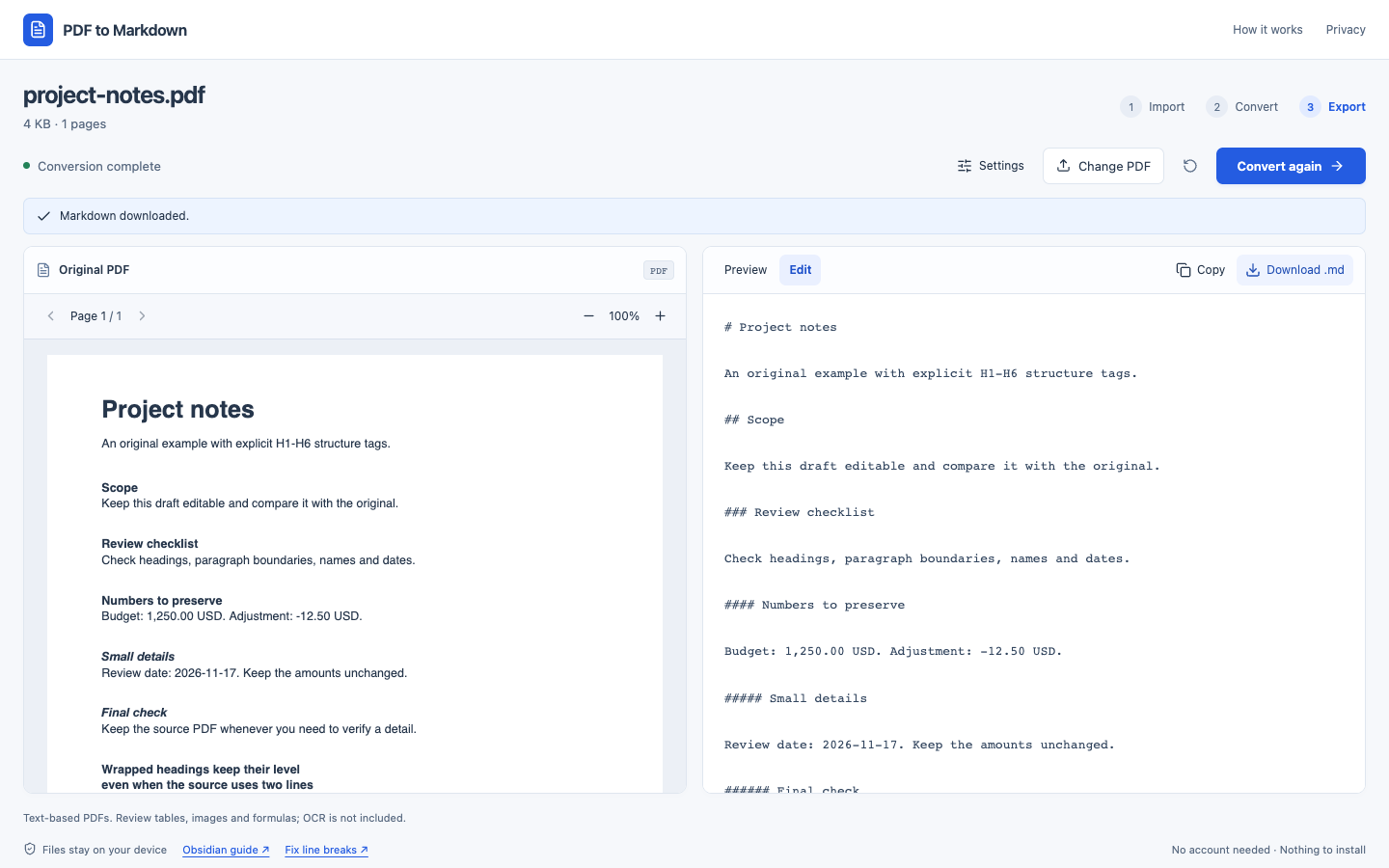
To repeat the check, download Tagged sample PDF, open the converter, choose that file, leave Detect headings on, and convert. Inspect Edit before exporting. Try a sample still loads the separate Field notes document used earlier in this guide.
This controlled example demonstrates the tagged-heading path; it is not an overall accuracy score. It does not add OCR, reconstruct nested lists or tables, or repair multi-column reading order. Untagged headings, incorrect tags, and headings split across pages may still need manual review.
Some pages failed or conversion was canceled
Review any warnings and page markers before treating the note as complete. A partial export can contain finished pages alongside comments identifying known missing pages. Return to the original for those sections.
Try it with a document you know
Start with a short, single-column PDF whose contents you can check. Convert it, remove any page clutter, and open the Markdown in Obsidian. Keep the original alongside the note whenever you need to verify a quotation or refer to its layout.