To remove unwanted line breaks when converting a text-based PDF to Markdown, start with Settings → Merge wrapped lines enabled. Convert, inspect the raw text in Edit, and compare paragraph boundaries with the PDF. Keep intentional breaks in addresses, poetry, and code; check words split by a hyphen separately.
This guide uses a one-page PDF we created to show those decisions. You can download the original and both unedited conversion results. It is a controlled example, not an accuracy benchmark for every PDF.
First, identify which kind of break you see
Three different things can look like a new line:
- Visual wrapping: an editor displays a long line on several screen lines because the panel is narrow. Widening the panel changes the wrapping; the file itself may contain no newline there.
- A newline inside a paragraph: extracted text follows the PDF’s printed lines. You may want to join these into one editable paragraph.
- A paragraph boundary: a blank line separates two Markdown paragraphs. Usually, you want to keep it.
A newline in raw Markdown does not always create a visible break in the rendered note. CommonMark treats an ordinary newline inside a paragraph as a soft line break. Rendering settings can differ between apps. Check Edit or the downloaded .md file, rather than judging solely by Preview.
Try the same PDF with merging on and off
The original Wrapped lines sample contains ordinary prose, a separate paragraph, a fictional mailing address, a deliberately split word, and amounts to verify. All text is selectable. No customer material is included.
- Open the PDF to Markdown converter and select Choose PDF to load the downloaded sample. Try a sample loads our other demonstration document.
- Open Settings. Leave Detect headings on and Remove repeated headers and footers off. Check Merge wrapped lines.
- Select Convert to Markdown, then Edit. Compare the result with the original PDF.
- Download this result before testing another setting. Uncheck Merge wrapped lines and select Convert again. Reconverting replaces any edits.
These are excerpts from the actual outputs. With merging off:
A PDF can wrap a sentence at the edge of a page even when
the next line belongs to the same paragraph. Joining these
lines makes the text easier to edit in a Markdown note.

This is a separate paragraph. Keep this boundary when
you clean the extracted text.
With merging on, the first three lines become one line in the file. The blank line before the next paragraph remains:
A PDF can wrap a sentence at the edge of a page even when the next line belongs to the same paragraph. Joining these lines makes the text easier to edit in a Markdown note.

This is a separate paragraph. Keep this boundary when you clean the extracted text.
Long lines in this example can scroll horizontally. In the converter’s Edit panel they may wrap visually to fit the panel.
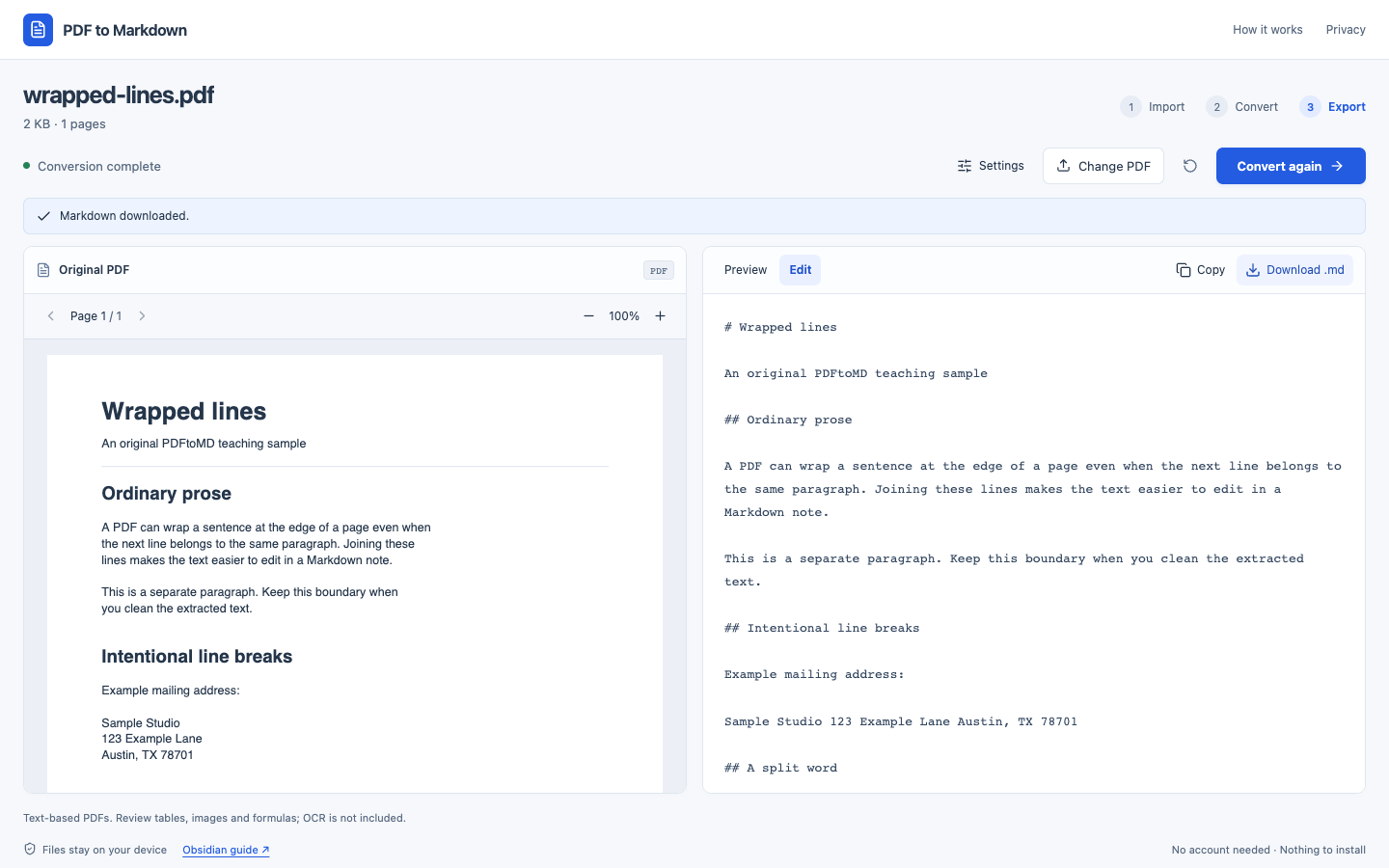
PDFtoMD uses text positions and spacing to infer lines and paragraphs. It cannot determine the intended structure reliably from every layout. In this sample, the larger gap between paragraphs preserved the boundary. Closely spaced paragraphs in another PDF may need a blank line added manually.
Keep the breaks that carry meaning
Our sample address becomes Sample Studio 123 Example Lane Austin, TX 78701 with merging on. With merging off, its three source lines remain in the Markdown file. Neither setting decides which layout you intended.
For a document dominated by prose, leave merging on and repair the few intentional breaks in Edit. For a document full of addresses, verse, or line-sensitive material, try merging off and review it section by section.
If you need explicit visible line breaks in a CommonMark-compatible renderer, a backslash at the end of a line is one hard line break syntax. For example, you can manually change the sample address to:
Sample Studio\
123 Example Lane\
Austin, TX 78701
That example is a manual correction, not the converter’s unedited output. Check it in the app where you will use the note. Use blank lines for separate paragraphs. If you need a code block, add code fences and check indentation against the source; disabling merging does not reconstruct code structure.
Check split words separately
The sample deliberately ends one line with docu- and begins the next with ment. Merging produces docu- ment. It does not remove the hyphen or repair the word automatically.
After checking the original, change this example to document. Avoid removing every hyphen throughout a file: some belong in compound words, identifiers, or negative numbers. In both of our test outputs, 1,250.00 USD, -12.50 USD, and 2026-11-17 remained unchanged. Verify important details in your own document too.
When a different extraction workflow is needed
If text from different columns is interleaved, joining lines will not reliably restore reading order. A page that is only an image needs OCR, which PDFtoMD does not provide. Complex tables, formulas, and images also need another workflow or substantial manual work.
This converter accepts one PDF up to 20 MB and 50 pages. Conversion runs locally in your browser; PDF contents are not uploaded for conversion. Website assets and Cloudflare Web Analytics still make network requests, as explained in Privacy & analytics.
Before downloading, check paragraph boundaries, intentional breaks, split words, and important numbers. Copy and Download .md use your latest edits. If your next step is a note in Obsidian, follow our PDF to Markdown for Obsidian guide.